The Playwright test runner
Learn how to give your test suite some structure.
So far, we've only looked at the internals of a test run. But how can you control when and how your tests are run?
test / test.describe
Suppose your test files grow, you can always introduce a clean grouping using test.describe.
import { test, expect } from "@playwright/test";

test.describe("playwright", () => {
  test("has title", async ({ page }) => {
    // ...
  });

  test("get started link", async ({ page, browserName }) => {
    // ...
  });
});
Tags
Tag tests or whole describe blocks to organize them and filter at runtime. Tags are passed via the options object and conventionally start with @.
// tag a whole describe block
test.describe("checkout flow", { tag: "@smoke" }, () => {
  test("can add to cart", async ({ page }) => {
    // ...
  });
});

// tag individual tests with one or multiple tags
test("checkout works", { tag: ["@smoke", "@critical"] }, async ({ page }) => {
  // ...
});
Filter tests by tag from the CLI with --grep:
npx playwright test --grep @smoke
You can also dedicate a project to a tag in playwright.config.ts — useful when tagged tests should run with different settings (retries, timeouts, browsers) or as a separate CI job.
import { defineConfig } from "@playwright/test";

export default defineConfig({
  projects: [
    {
      name: "smoke",
      grep: /@smoke/,
    },
  ],
});
Then run that project on its own:
npx playwright test --project=smoke
beforeAll, beforeEach, afterEach, afterAll
Playwright provides common test runner methods you might be already familiar with.
import { test, expect } from "@playwright/test";

test.describe("playwright", () => {
  test.beforeAll(async () => {
    console.log("Before tests");
  });

  test.beforeEach(async ({ page }) => {
    console.log("Before each");
  });

  test("has title", async ({ page }) => {
    // ...
  });

  test("get started link", async ({ page, browserName }) => {
    // ...
  });

  test.afterEach(async ({ page }) => {
    console.log("After each");
  });

  test.afterAll(async () => {
    console.log("After tests");
  });
});
Fixture objects such as page are isolated per test but keep their state in life cycle hooks such as beforeEach and afterEach. For example, you can log into a website in a beforeEach hook and all following tests will access encapsulated but logged in page objects.
Individual test configuration
When Playwright runs all your tests, there are multiple ways to configure single test runs.
test.only
If you're focusing on a single test during development you can task the test runner to only run a single test.
test.only("focus this test", async ({ page }) => {
  // Run only focused tests in the entire project.
});
test.only is valuable in debugging sessions to only run and debug a single test.
test.fixme
Don't run tests but mark them as fixme to look at them later.
// skip an entire test and mark it as `fixme`
test.fixme("test to be fixed", async ({ page }) => {
  // ...
});

// skip test depending on a condition and mark it as `fixme`
test("broken in WebKit", async ({ page, browserName }) => {
  test.fixme(
    browserName === "webkit",
    "This feature is not implemented on Mac yet",
  );
  // ...
});
test.slow
Mark a test as slow and triple the auto-waiting timeouts.
test("has title", async ({ page, browserName }) => {
  test.slow(browserName === "webkit", "This feature is slow on Mac");
  // ...
});
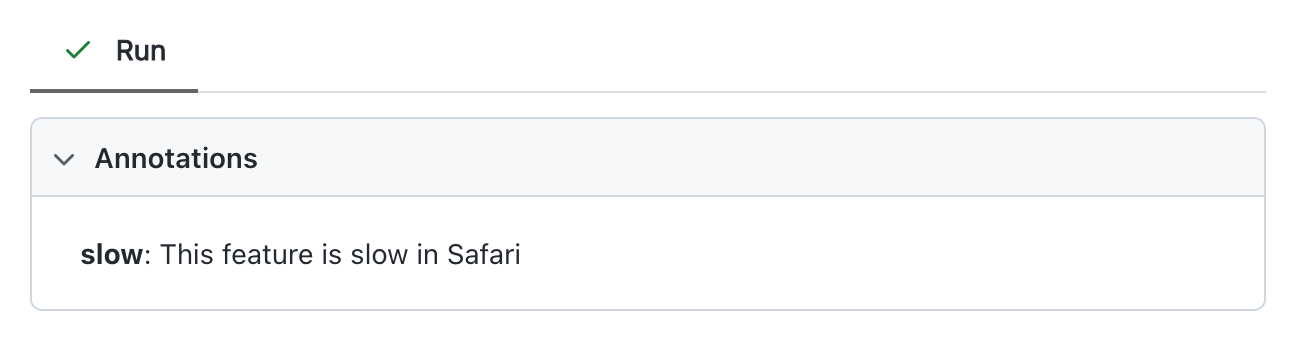
test.slow() will also add a custom notation to your Playwright test report.
test.skip
Skip a test.
// skip test entirely
test.skip("broken test", async ({ page }) => {
  // ...
});

// skip test when it's run in webkit
test("skip in WebKit", async ({ page, browserName }) => {
  test.skip(
    browserName === "webkit",
    "This feature is not implemented for Mac",
  );
  // ...
});
Test steps
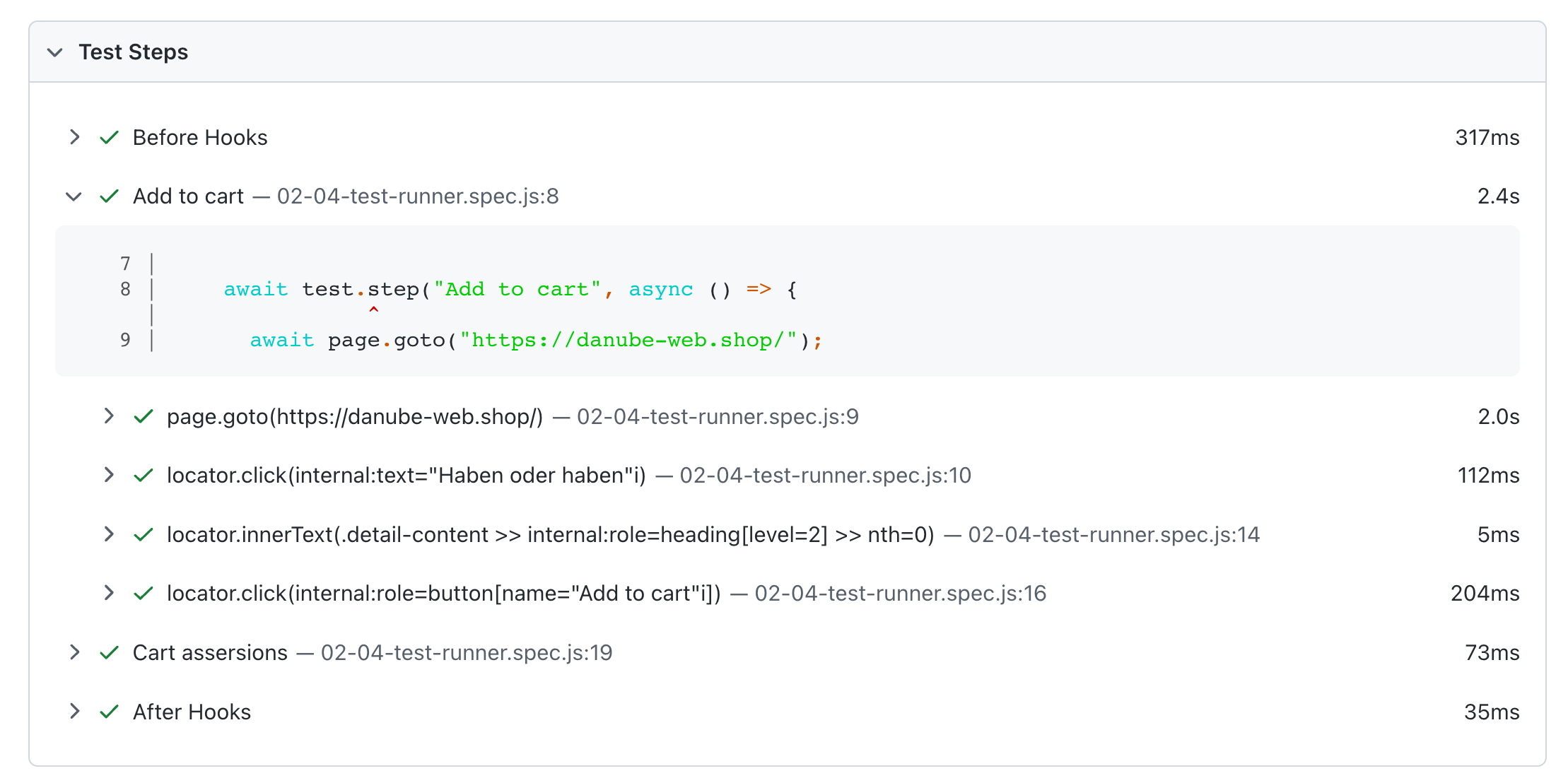
For longer and more complex tests, it might be valuable to add a third level of grouping - groups, tests and test steps.
test.describe("workshop store", () => {
  test("add the first product to the cart", async ({ page }) => {
    await test.step("Open the first product", async () => {
      await page.goto("/");
      await page
        .getByTestId("hero-product-grid")
        .getByRole("link")
        .first()
        .click();
    });

    await test.step("Add to cart", async () => {
      await page.getByLabel("Add item to cart").click();
    });
  });
});
Test steps are a nice way to make your test reports more readable.
Test information
Additionally to the handy test methods you can also access and enrich the gathered test information using the testInfo.
Custom annotations
fixme or slow tests will be annotated with their particular labels.

It's also possible to add your own annotations to the test report.
test("is logged in", async ({ loggedInPage }, testInfo) => {
  testInfo.annotations.push({
    type: "Some thing is a 🐟y here",
    description: "https://some-url.com",
  });
  // ...
});
Custom annotations can be valuable if you want to reference or link to other materials.

Group and tag your tests
Tag search and cart and run them on mobile Chrome
- In
tests/shop.spec.ts, wrap your cart-related tests in atest.describe("cart", { tag: "@cart" }, ...)block. - Set up a multiple new Playwright projects:
cartthat greps for it tag. - Increase the overall timeout for cart tests.
- Run the project on its own:
npx playwright test --project=cart. Confirm only the matching tests execute.
Think of more projects
How would you structure and group a growing Playwright test suite.
Would you implement smoke tests? Would you group by functioality and area?
Would you have a critical suite?
Think about your ideal approach and set up up the projects you might.